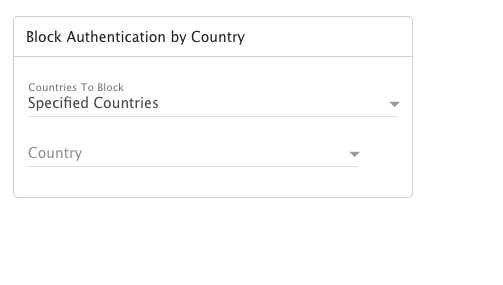
Part of a system administrator's job is making sure bad actors can't attempt to brute force logins to user accounts. Blocking authentication attempts from specific countries, or ONLY ALLOWING authentication from specific countries, is one way of doing this. Adding a country to the setting will just block authentication attempts, it won't impact sending or receiving messages from the country. It will simply prevent anyone from the country(-ies) logging into the server, regardless of protocol. However, system administrators won't be able to add their “home” country, which will prevent them from accidentally locking out users. Use this card to specify the following:
It's worth noting that if an entire country is blocked, but an IP within that country is added to the server's Whitelist, that IP will NOT be blocked as the Whitelist takes priority. For example, if you blocked the entirety of Albania, but added a single IP address that falls within Albania's block, only that IP will be able to authenticate to the server. No other Albanian IPs will be able to authenticate. (No offense meant to Albania — it simply appears towards the top of the list of countries.)
- Countries to Block - Use this dropdown to select "Specified Countries" or "All But Specified Countries". When selecting "Specified Countries", authentication attempts attempted from the country(-ies) that are selected will be blocked. When selecting "All But Specified Countries", only authentication attempts from the selected country(-ies) will be allowed. Attempts from any other country will be blocked.
- Country - Use this dropdown to select one or more countries, based on the block type selected.
- Login to the client panel (https://cp.runitspace.com)
- In Client Area > Choose Service > Click any of your Email hosting services.
- On the left-hand side Actions box > Click Log in to Webmail.
- You will be redirected to the Smartermail Web Control Panel.
- After logging in as the Primary Admin, click the More drop-down and then Domain Settings.
In General > Block Authentication by Country > Add the Country you need to block, or allow.
Then Click Save to save the setting.