
How to get the Caldav URL
Before proceeding to the next steps, first you need to login to your email account using your internet browser at mail.yourdomain in order to retrieve your Calendar "CalDAV URL".
- Go Calendar
- Choose the Folder Icon
- Choose Share Folder
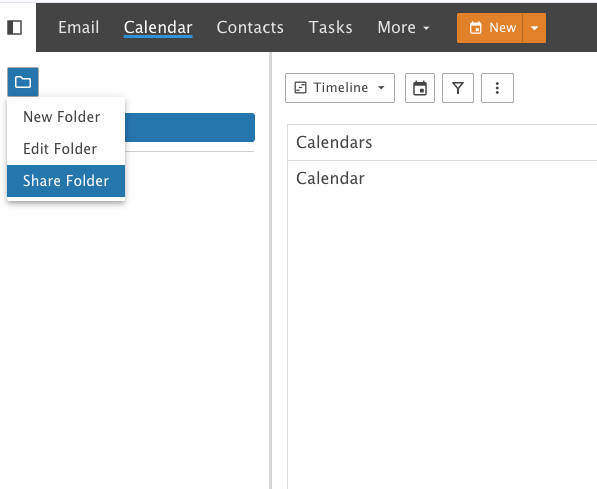
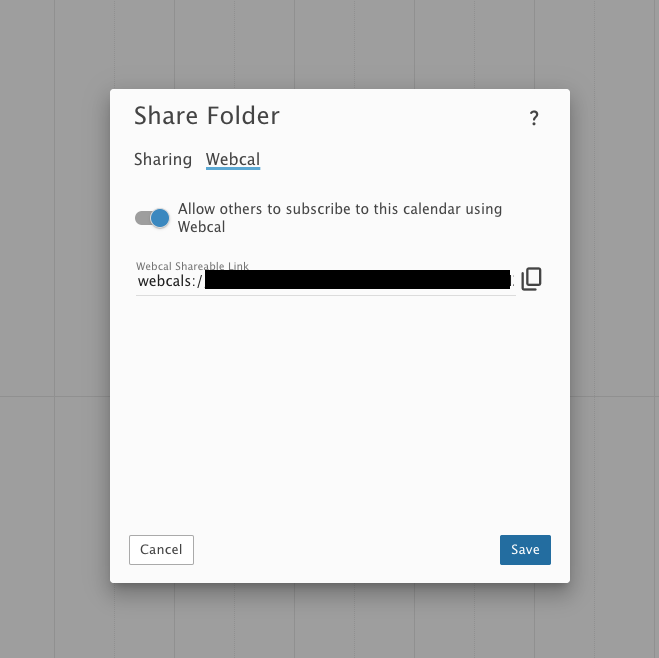
4. Choose Webcal
5. Copy the URL for setup.
Instructions for Google Calender
-
Log in to Google Calendar:
-
Open a browser, go to calendar.google.com, and sign in with your Google account.
-
-
Add an External Calendar:
-
In the left sidebar of Google Calendar, find Other calendars and click the + icon next to it.
-
Select From URL from the dropdown menu.
-
-
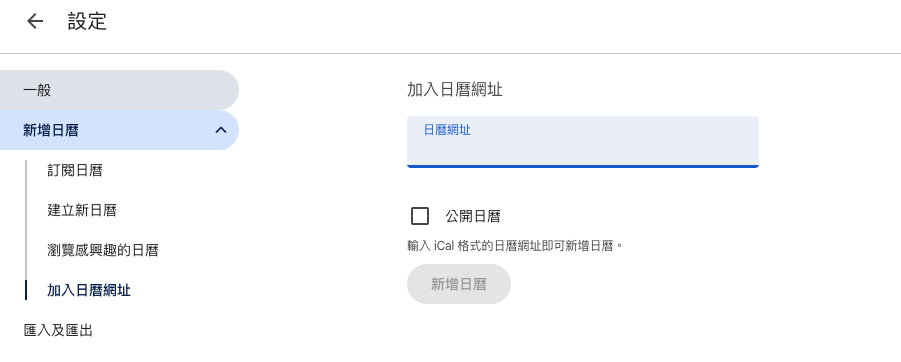
Paste the Webcal Link:
-
In the URL of calendar field, paste the Webcal link copied from SmarterMail (ensure webcals:// is changed to https:// if necessary)*.
-
Click Add calendar.
-
-
Verify Synchronization:
-
The added calendar will appear under Other calendars in the left sidebar.
-
Ensure the calendar is checked to display its events in Google Calendar.
-
Events may take a few minutes to several hours (up to 12 hours) to fully sync, depending on Google Calendar’s refresh rate.
-
