How to get the Caldav URL
Before proceeding to the next steps, first you need to login to your email account using your internet browser at mail.yourdomain in order to retrieve your Calendar "CalDAV URL".
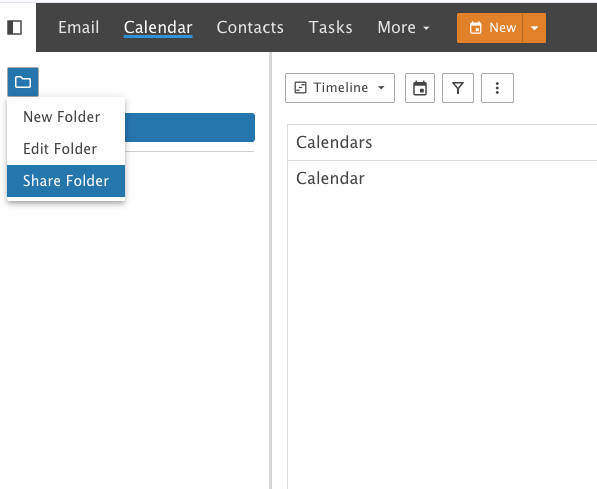
- Go Calendar
- Choose the Folder Icon
- Choose Share Folder
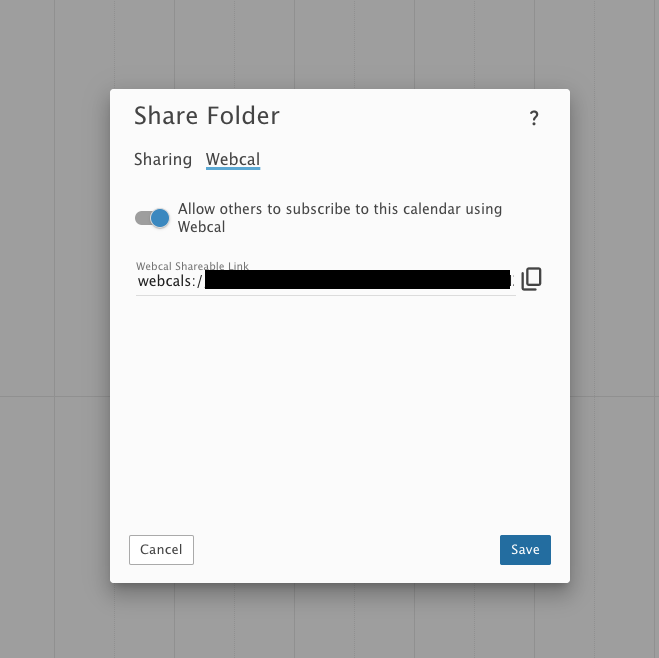
4. Choose Webcal
5. Copy the URL for setup.
Instructions for Apple iPhone and other iOS devices:
- From your home screen, click on the "Settings" icon.
- From Settings choose "Calendar"
- Click on "Accounts".
- Then "Add Account".
- From the list choose "Other"
- Then click on "Add CalDAV Account"
- In the "Server" field enter the "CalDAV URL" you gathered from the previous step and in the username and password field enter your email account username and password accordingly. In the Description just enter a description that suites your calendar name, then click "Next" to continue.

- If the account settings were entered correctly you will be be prompt with the following screen, just click "Save" to complete the setup.

Instructions for Android devices(Through Google Calendar):
- Synchronize Webmail calendar with Google Calendar.
- Download Google Calendar on your SmartPhone.
- Open Google Calendar > Setting > Choose the one connected to Webmail Calendar
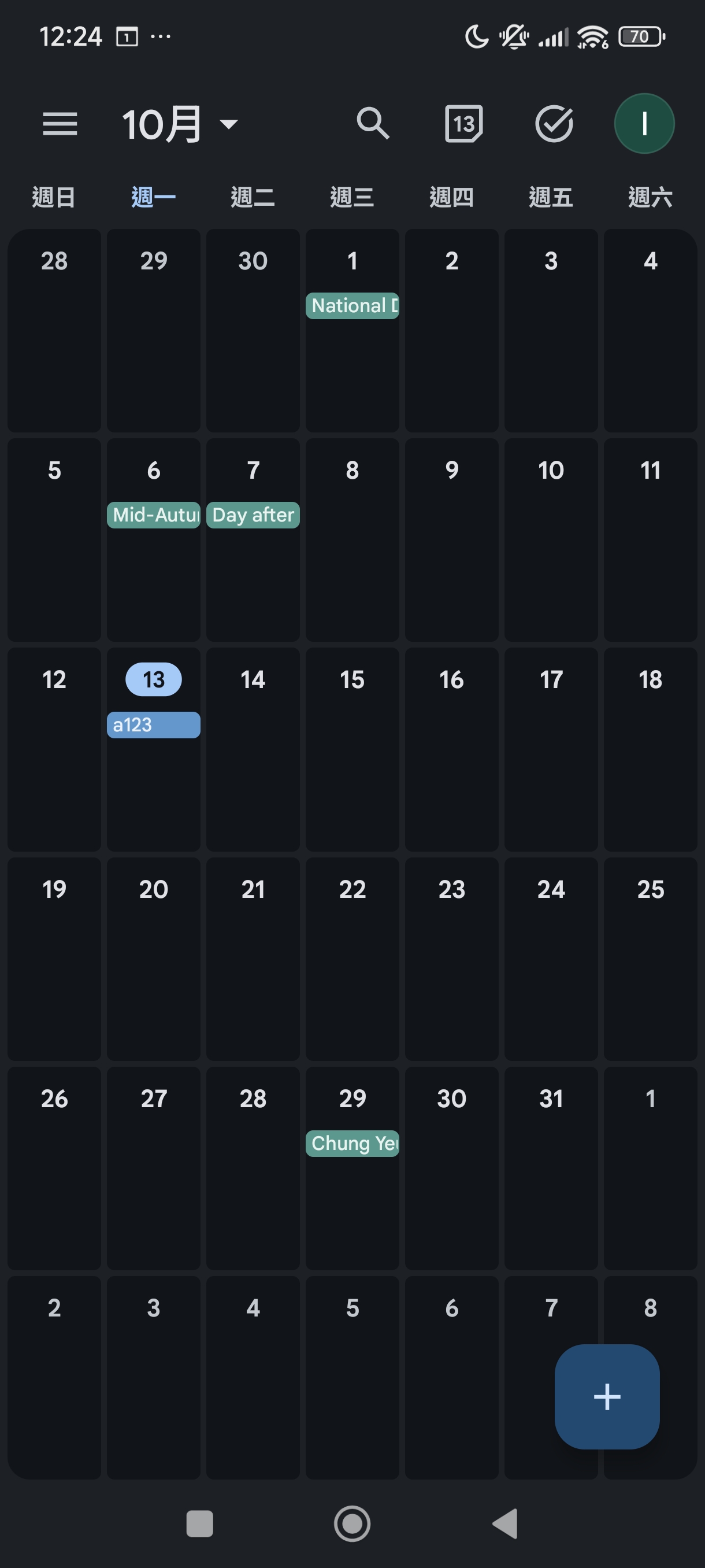
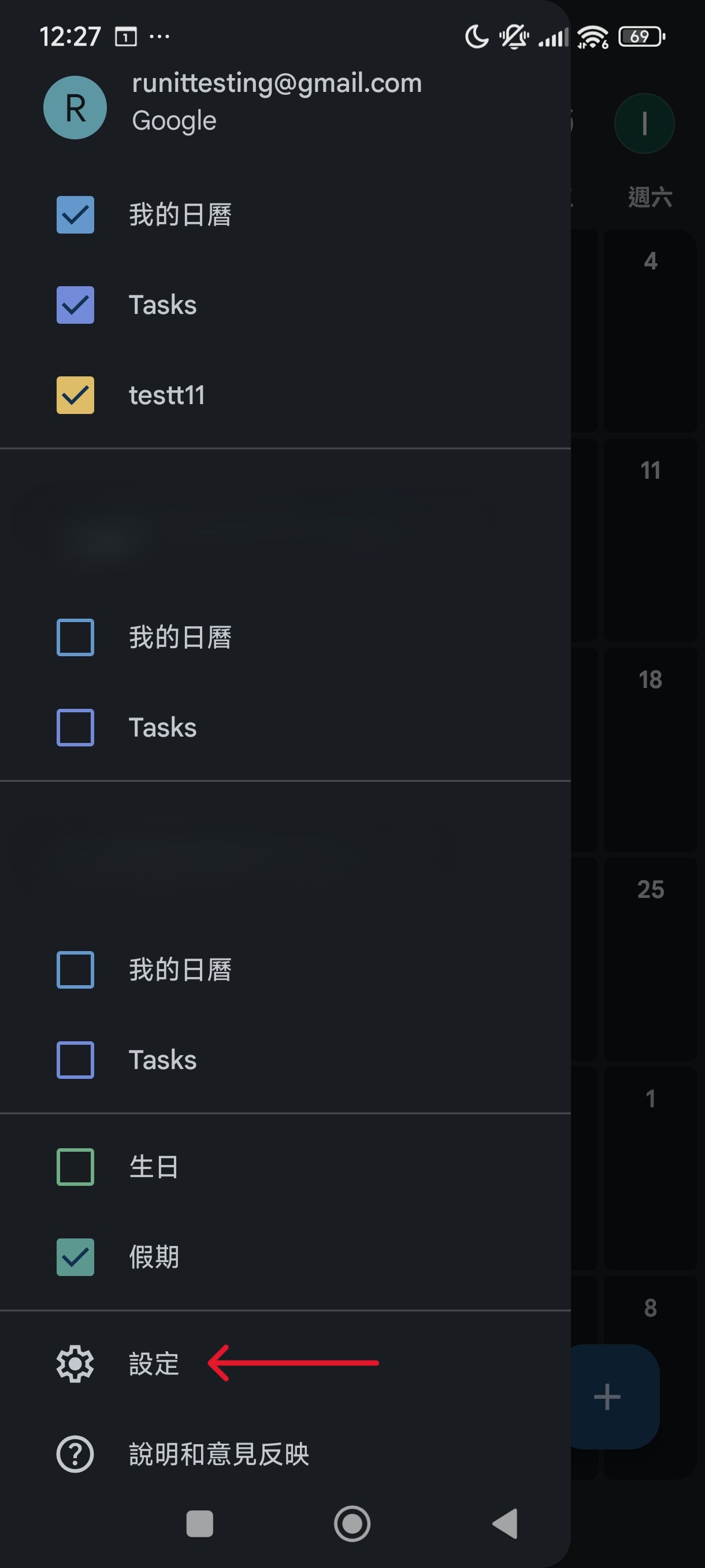
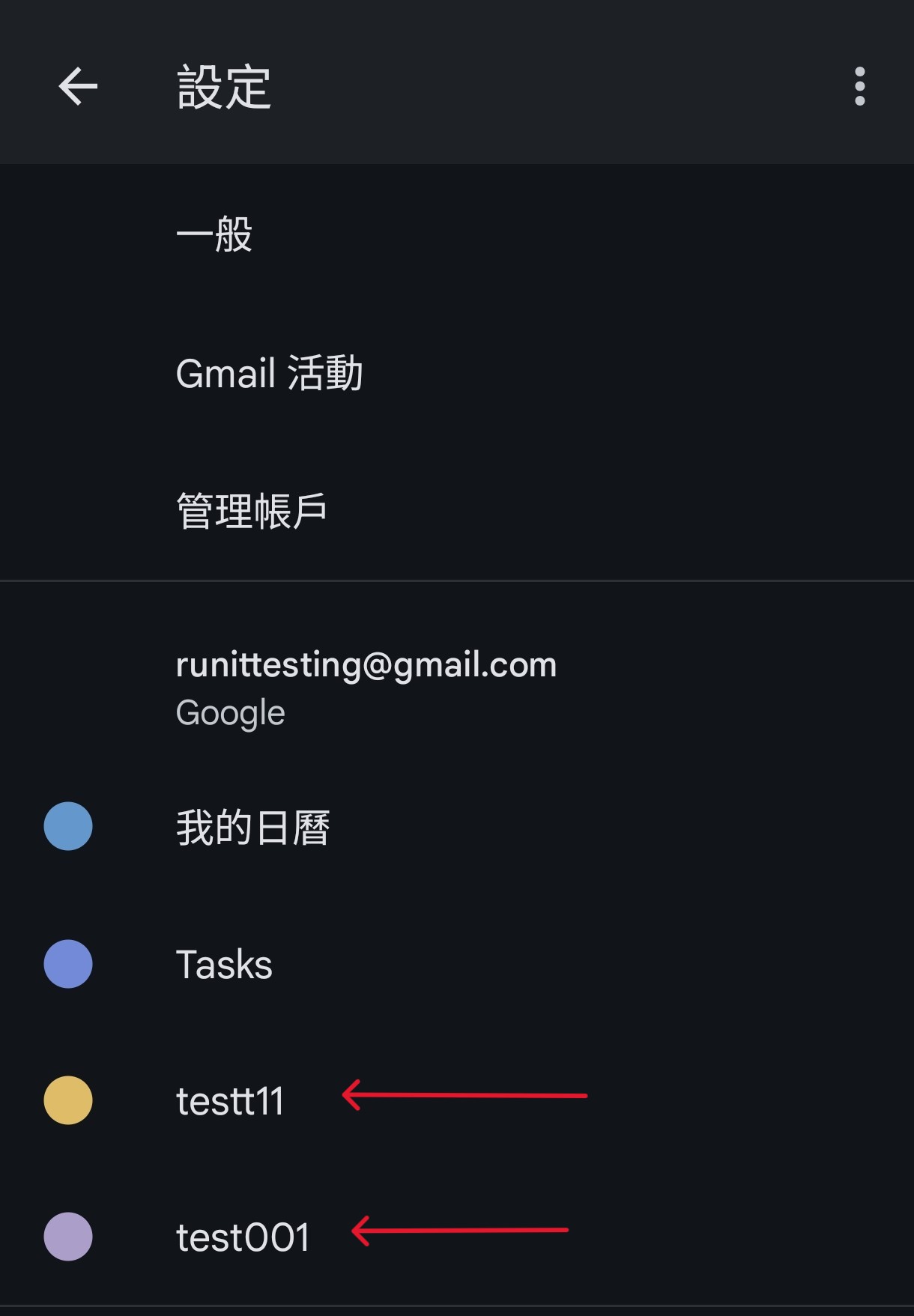
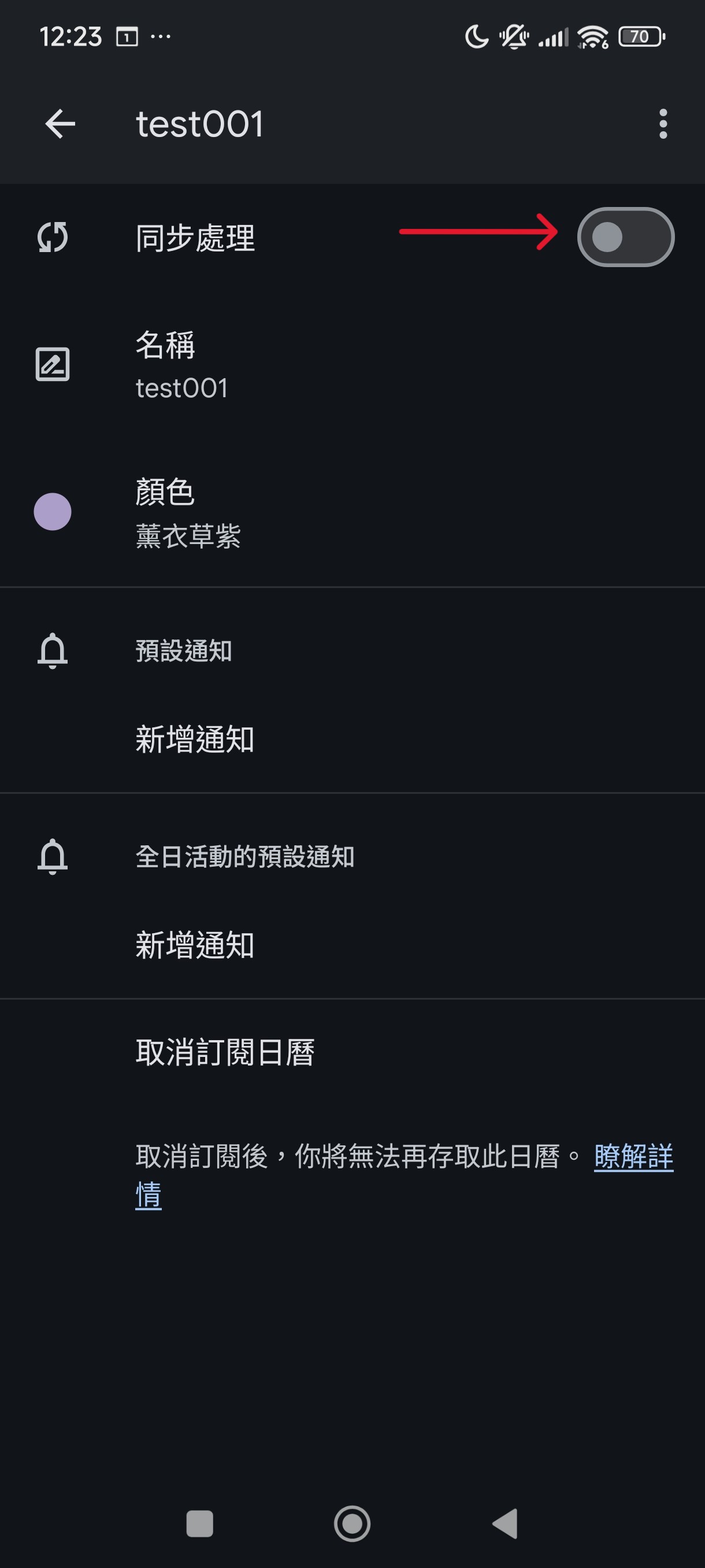
- Synchronous processing
- Open your SmartPhone Calendar > Setting > Manage Account > Tick the Google Calendar
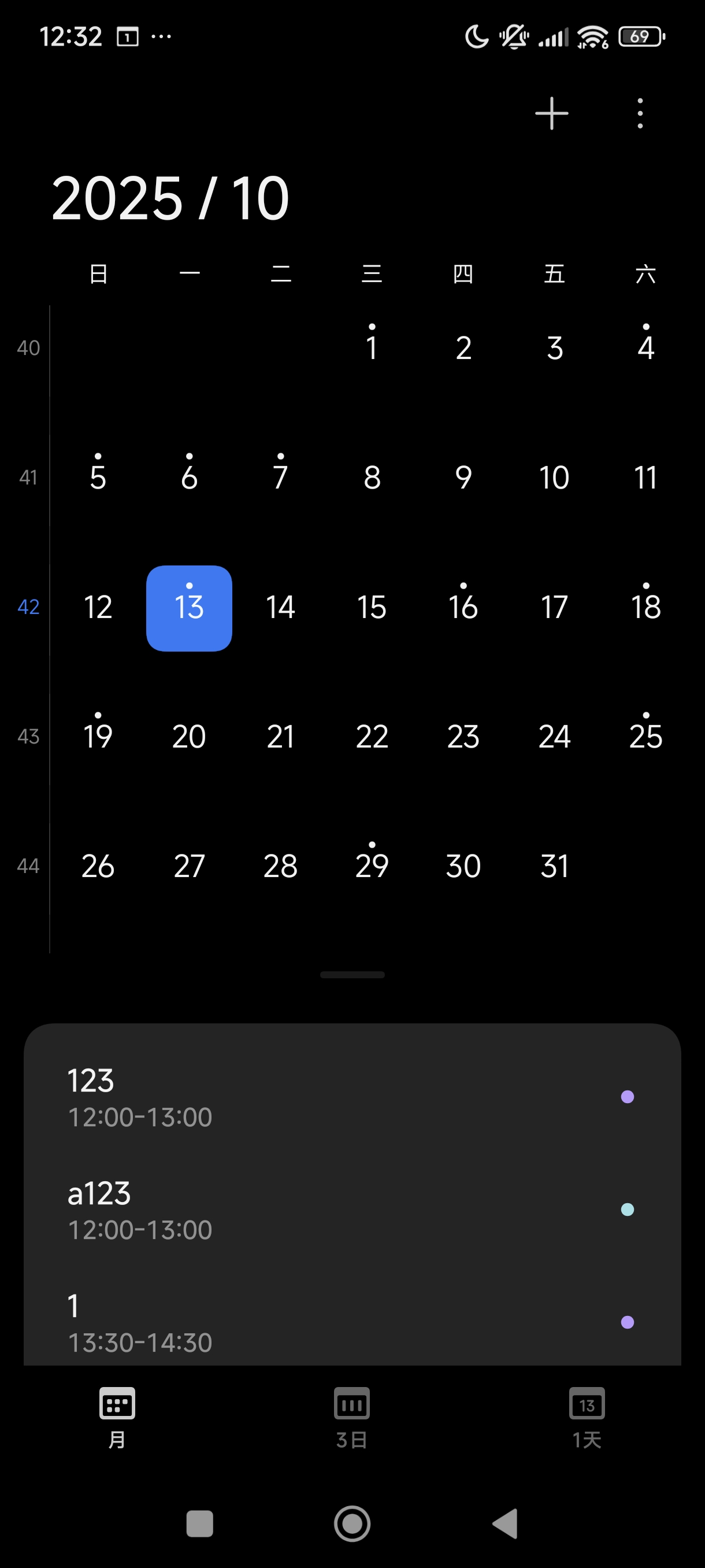
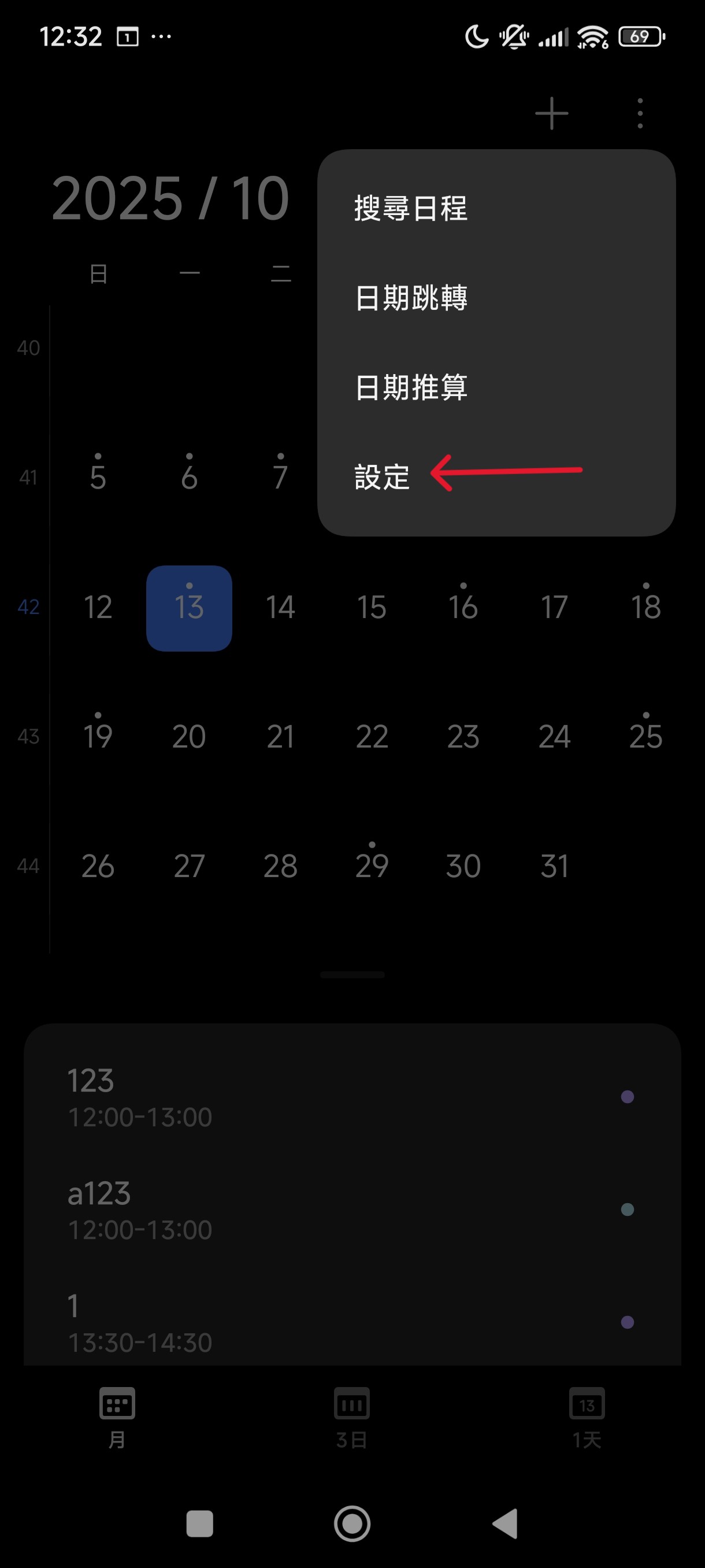
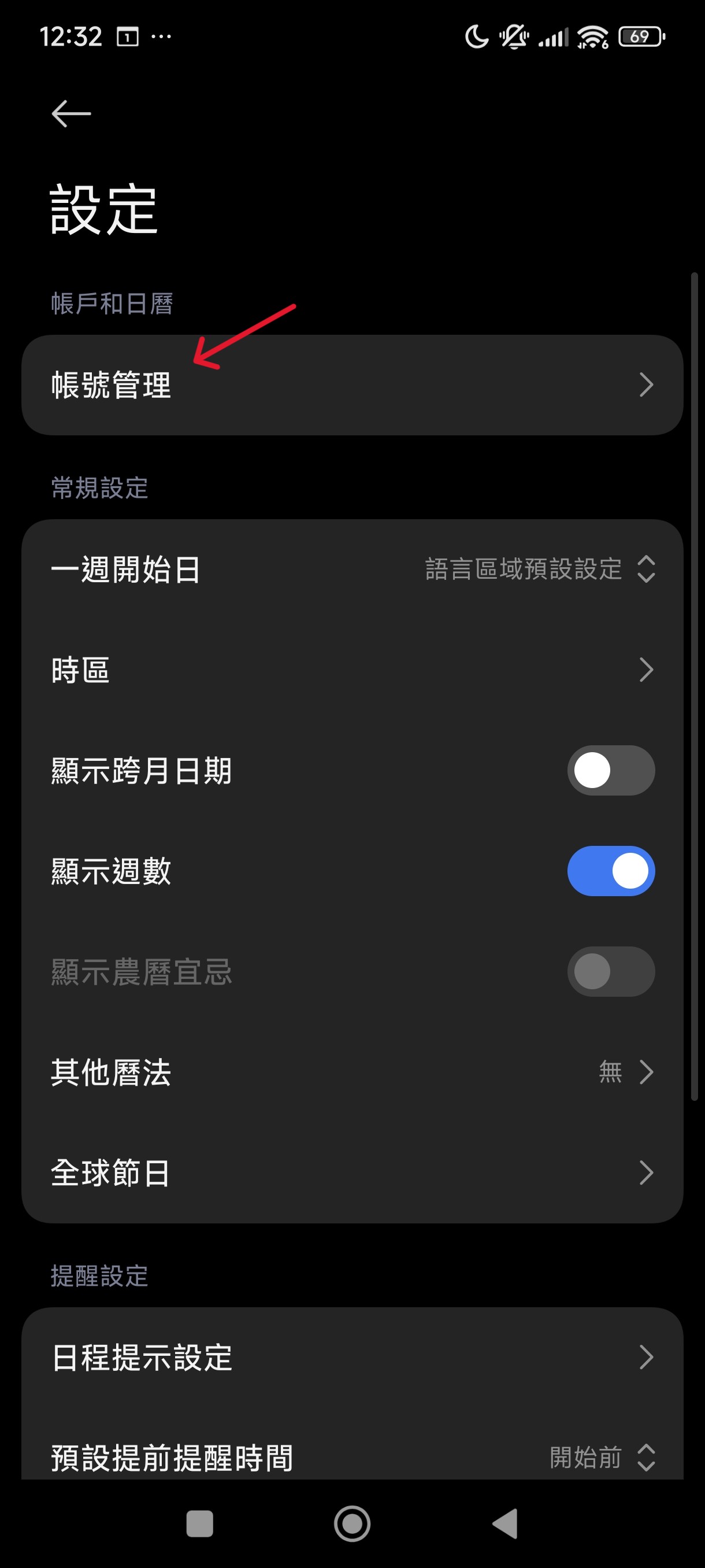
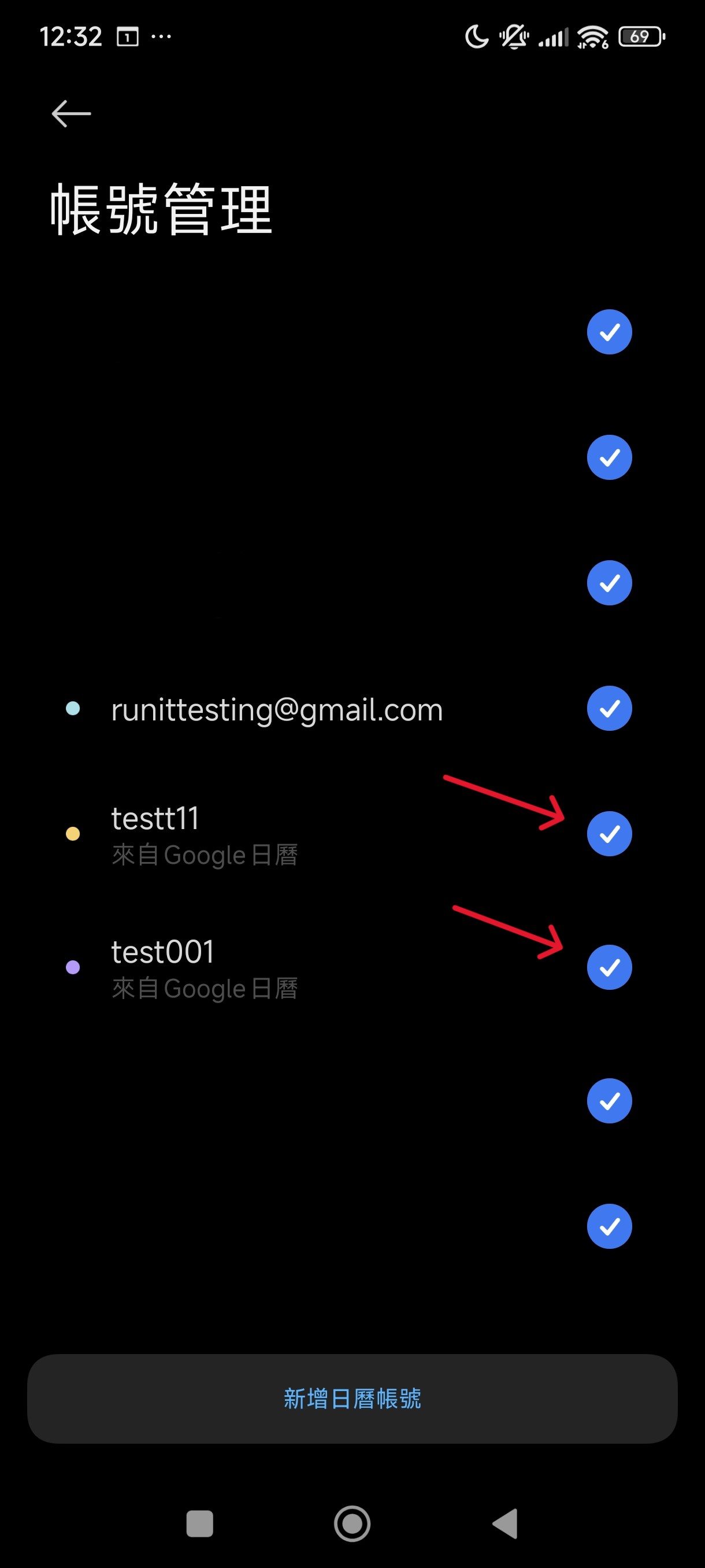
- Restart the calendar > Done
