
1.Login to SmarterMail:
- Open your web browser and navigate to your SmarterMail login page (e.g.,
https://mail.yourdomain.com/). - Enter your username and password to log in.
2. Configure Email Retrieval:
- Within the Settings menu, locate and click on "Connectivity" or "Connectivity Options."
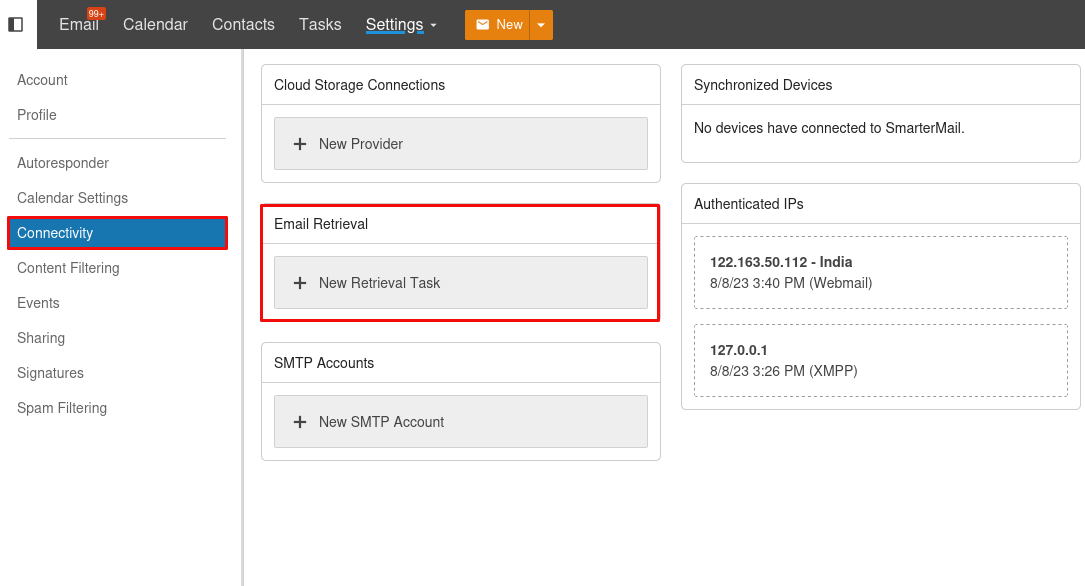
3. Create a New Retrieval Task:
- In the Connectivity options, find the section labeled "Email Retrieval" or a similar option.
- Click on "Email Retrieval" to access the email retrieval settings.
4. Set Up a New Retrieval Task:
- Look for an option to create a new retrieval task or account. This is where you'll configure the settings for email retrieval.
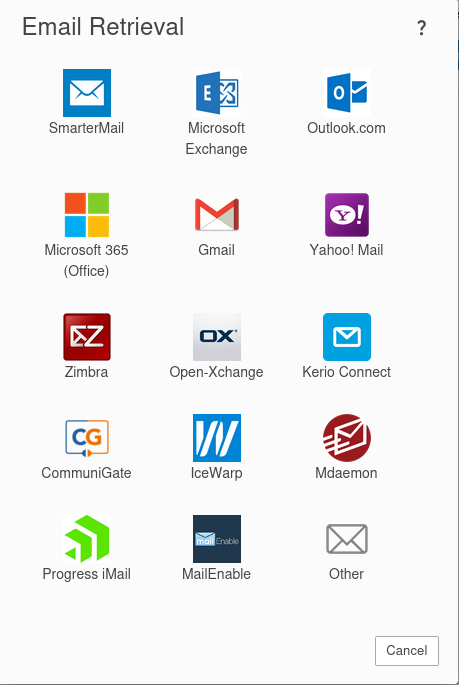
5. Choose the Email Service Type:
- Select the appropriate email service type based on your needs (IMAP, POP3, Exchange, Other).
6. Configure Retrieval Settings:
- Provide the following information based on your chosen email service type:
- Server hostname or IP address.
- Port numbers for incoming and optionally outgoing mail.
- Username and password for the external email account.
- SSL/TLS settings if required.
- Retrieval frequency (how often SmarterMail should check for new emails).
7. Test the Configuration:
- Before saving the settings, test the configuration to ensure it works correctly. Most email servers provide a "Test" or "Check" button for verification.
8. Save and Enable the Retrieval Task:
- Save the retrieval task settings.
- Optionally, enable the retrieval task to start retrieving emails immediately.
09. Check for Retrieved Emails: - Once the retrieval task is enabled, SmarterMail will periodically check the external email account for new messages and retrieve them.
