Step 1: Log in to SmarterMail
- Navigate to your SmarterMail login page (e.g., http://mail.yourdomain.com).
- Enter your full email address and password, then click the “Login” button.
Step 2: Access the Email Settings
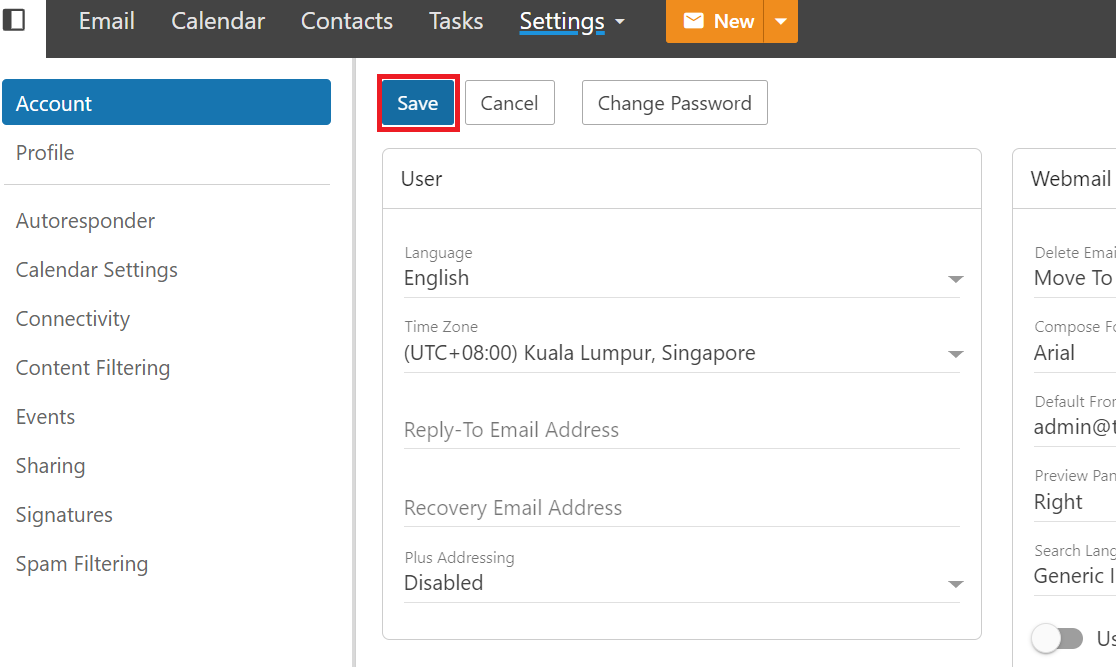
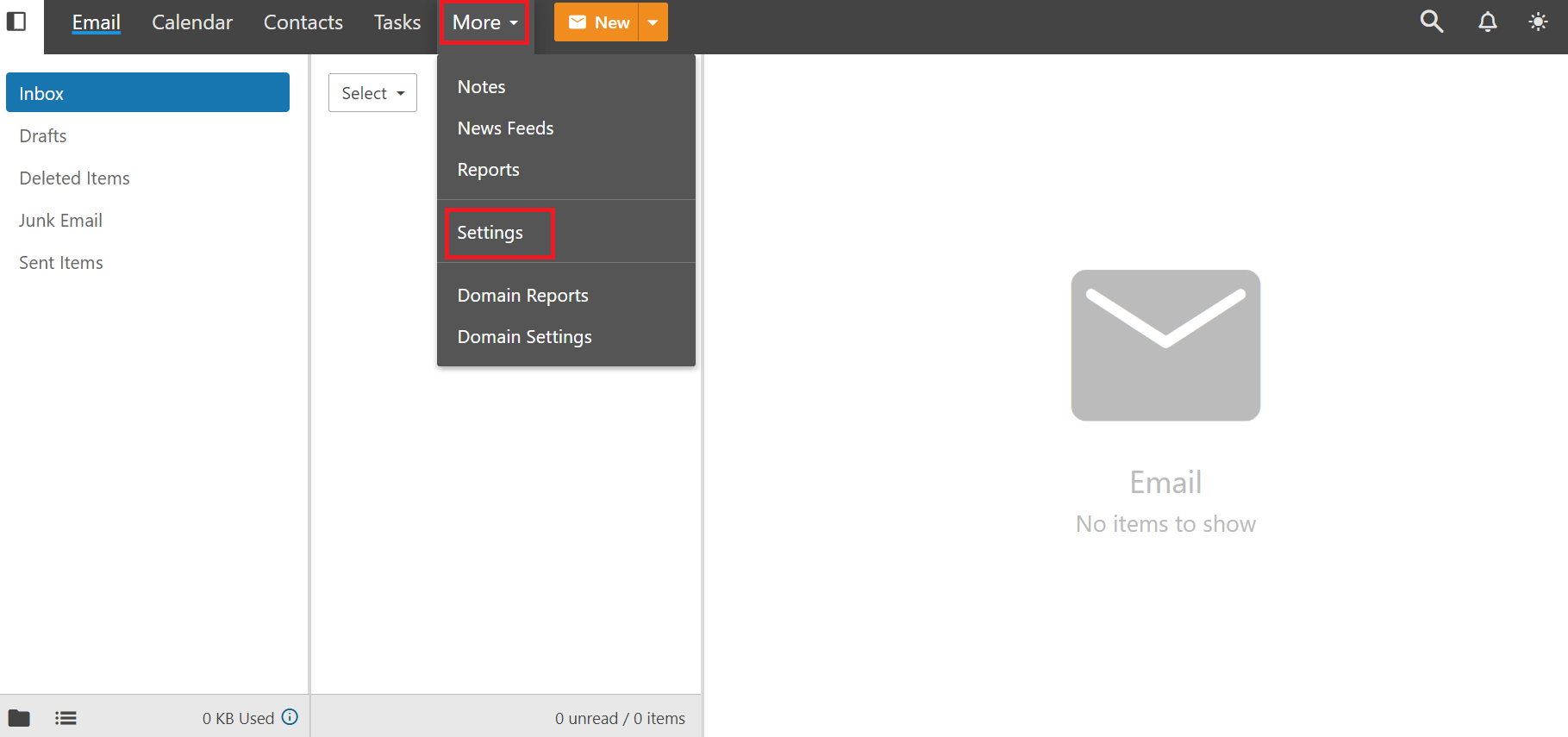
- Once logged in, click on the “More”, and click “Settings”.
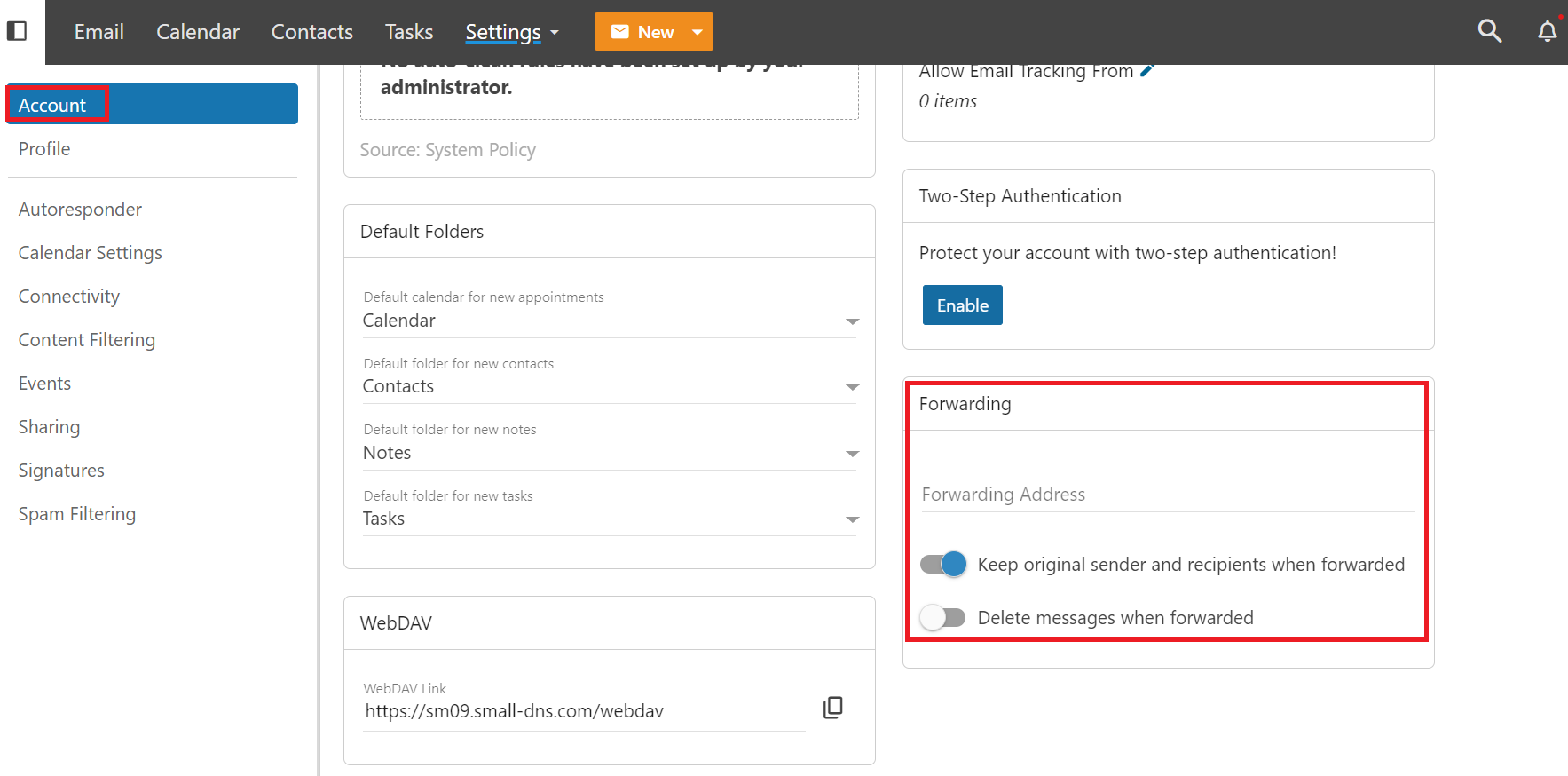
- In the “Settings” menu, click on “Account”.
Step 3: Navigate to Forwarding Options
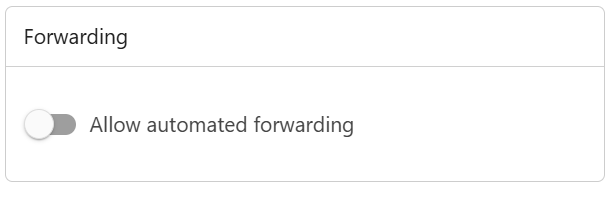
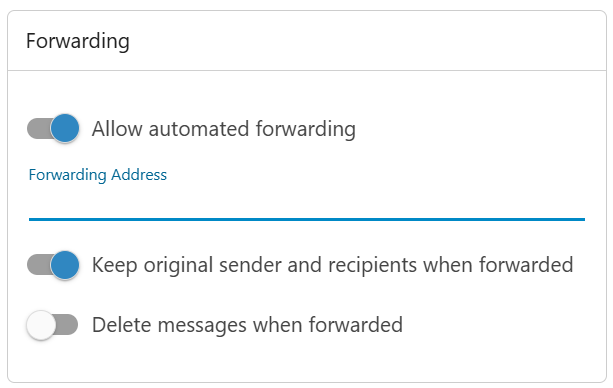
- Within “Account” section. Right side of the page to find and the “Forwarding” tab. Turn it on and enter the email address.
Step 4: Set Up Forwarding
- In the “Forwarding” tab, you will see a field to enter the email address where you want to forward your emails.
- Enter the email address to which you want to forward your messages.
- Choose whether you want to keep a copy of forwarded messages in your SmarterMail inbox by checking or unchecking the appropriate box.
- Scroll back to the top of the page to click “Save”