
If browser notifications were blocked when SmarterMail requested permission, you must manually adjust your browser settings to receive new mail or event alerts.
1. Google Chrome
Quick Method:
- Copy and paste the following into your Chrome address bar and press Enter:
chrome://settings/content/notifications - Check the list under "Allowed to send notifications". If your SmarterMail URL is listed under "Not allowed," remove it or change the permission to Allow.
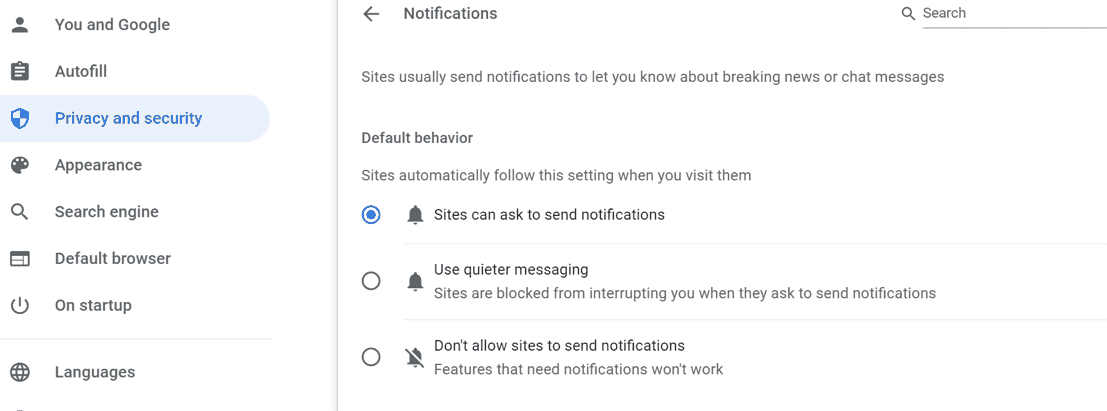
Manual Method:
- Click the "Customize and control" icon (three vertical dots) in the top right corner.
- Select Settings > Privacy and security.
- Click on Site settings > Notifications.
- You can add or manage your SmarterMail URL under the "Allowed to send notifications" section.
2. Apple Safari (macOS)
Safari settings work slightly differently. It is recommended to have your SmarterMail tab open first.
Steps:
- Open your SmarterMail website in Safari.
- In the macOS menu bar (top left), click Safari > Settings (or Preferences on older versions).
- Click the Websites icon at the top of the window.
- Select Notifications from the left-hand menu.
- Find your SmarterMail URL in the list on the right and change the permission dropdown to Allow.
3. Microsoft Edge
Quick Method:
- Copy and paste the following into your Edge address bar and press Enter:
edge://settings/content/notifications - Review the "Block" and "Allow" lists to ensure your SmarterMail URL is allowed.
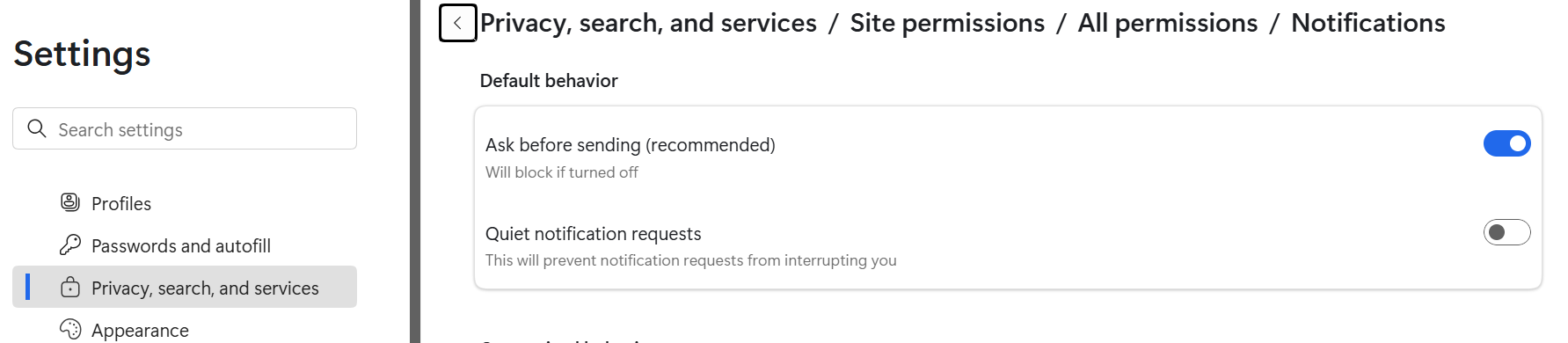
Manual Method:
- Click the "Settings and more" icon (three horizontal dots) in the top right corner.
- Select Settings > Cookies and site permissions.
- Click on Notifications.
- Here you can remove the SmarterMail URL from the Block list or manually add it to the Allow list.
4. Mozilla Firefox
Quick Method:
- Copy and paste the following into your Firefox address bar and press Enter:
about:preferences#privacy - Scroll down to the Permissions section.
- Click the Settings... button next to Notifications.
Management Steps:
- A window will open showing websites that have requested notification permissions.
- Find your SmarterMail URL in the list and change the status from "Block" to Allow.
- Click Save Changes.
(Note: Unlike other browsers, Firefox does not allow you to manually type in a URL to add it; you must modify it from this list or wait for the site to ask again).
