
It allows you to schedule emails to be sent at a specific time.
-
Compose a New Email
- Once logged into SmarterMail, click New Email or the Compose button.
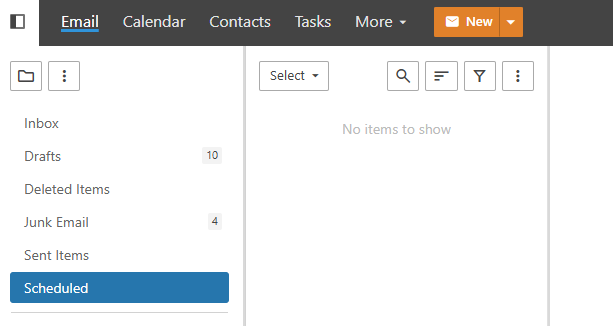
- Once logged into SmarterMail, click New Email or the Compose button.
-
Draft Your Email
- Fill in the recipient's email address, subject, and compose your message as usual.
- Add attachments or other elements if needed.
-
Schedule the Email
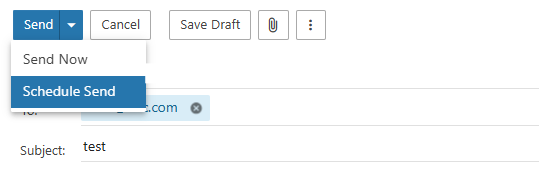
- Look for the Send Later or Schedule Send option (typically found near the Send button or in the email options bar).
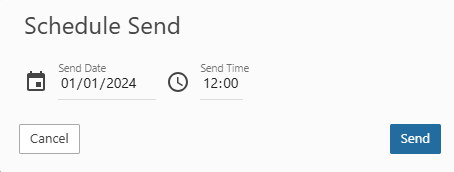
- Select the specific date and time you want the email to be sent.
- Confirm your schedule by clicking Save or Schedule.
-
Review Scheduled Emails
- Navigate to the Scheduled Emails folder to review or edit your scheduled emails before they are sent.
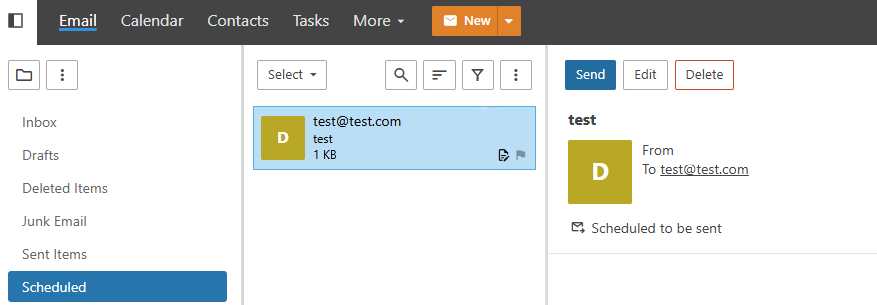
- Navigate to the Scheduled Emails folder to review or edit your scheduled emails before they are sent.
