
Introduction
Sharing your SmarterMail calendar allows you to collaborate effectively by giving others access to your schedule. This guide will walk you through the steps to share your calendar in the latest version of SmarterMail, including assigning different permission levels and sharing with specific users or groups. The sharing feature is ideal for teams that need to stay in sync with schedules.
Prerequisites
- Access to webmail. (https://mail.domain)
- A calendar set up in SmarterMail.
- Appropriate permissions for calendar sharing.
Step-by-Step Guide
Step 1: Log Into SmarterMail Webmail
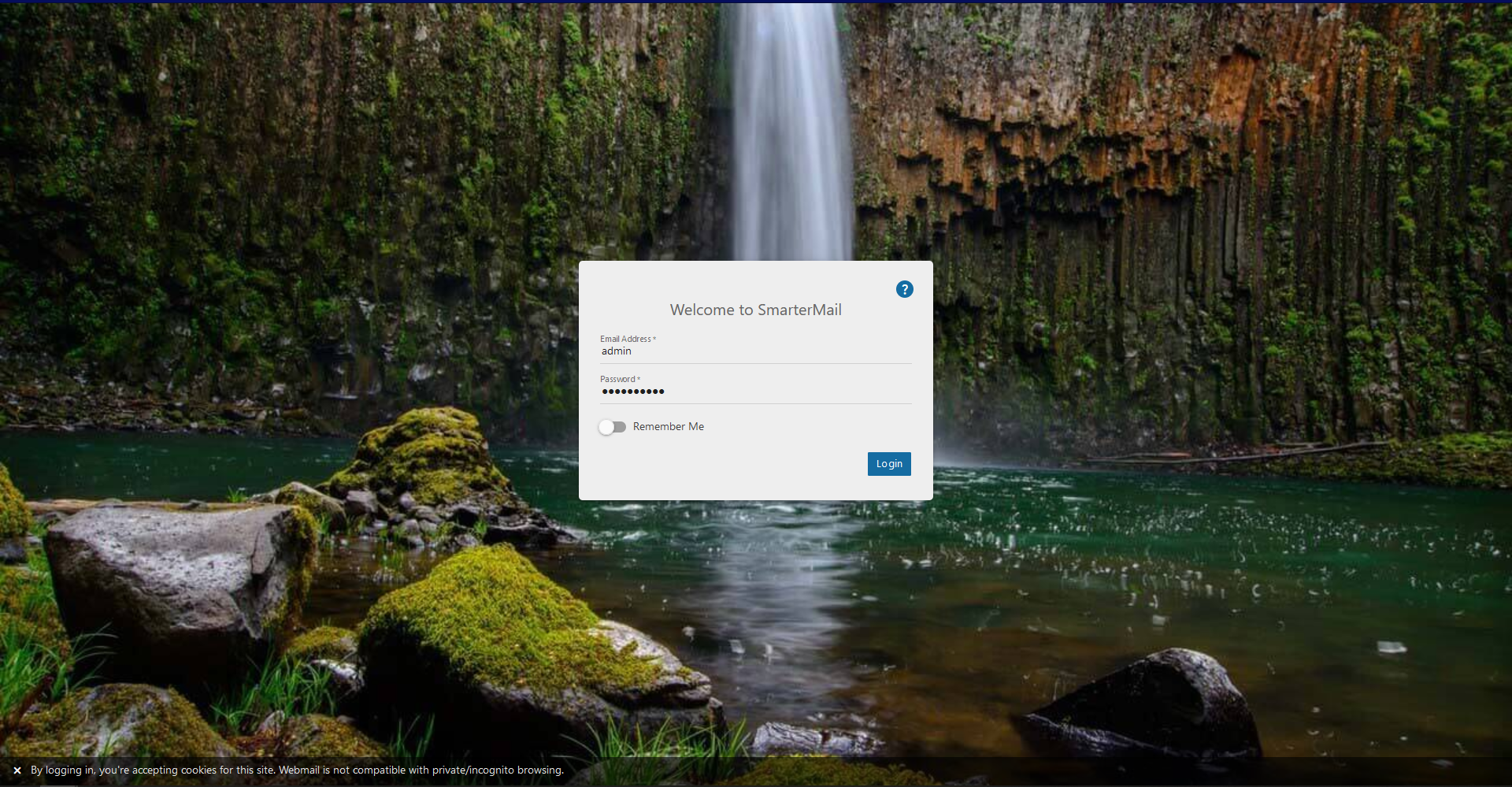
- Open your browser and navigate to your SmarterMail webmail.
- Log in using the account from which you want to share the calendar.
Step 2: Navigate to the Calendar Section
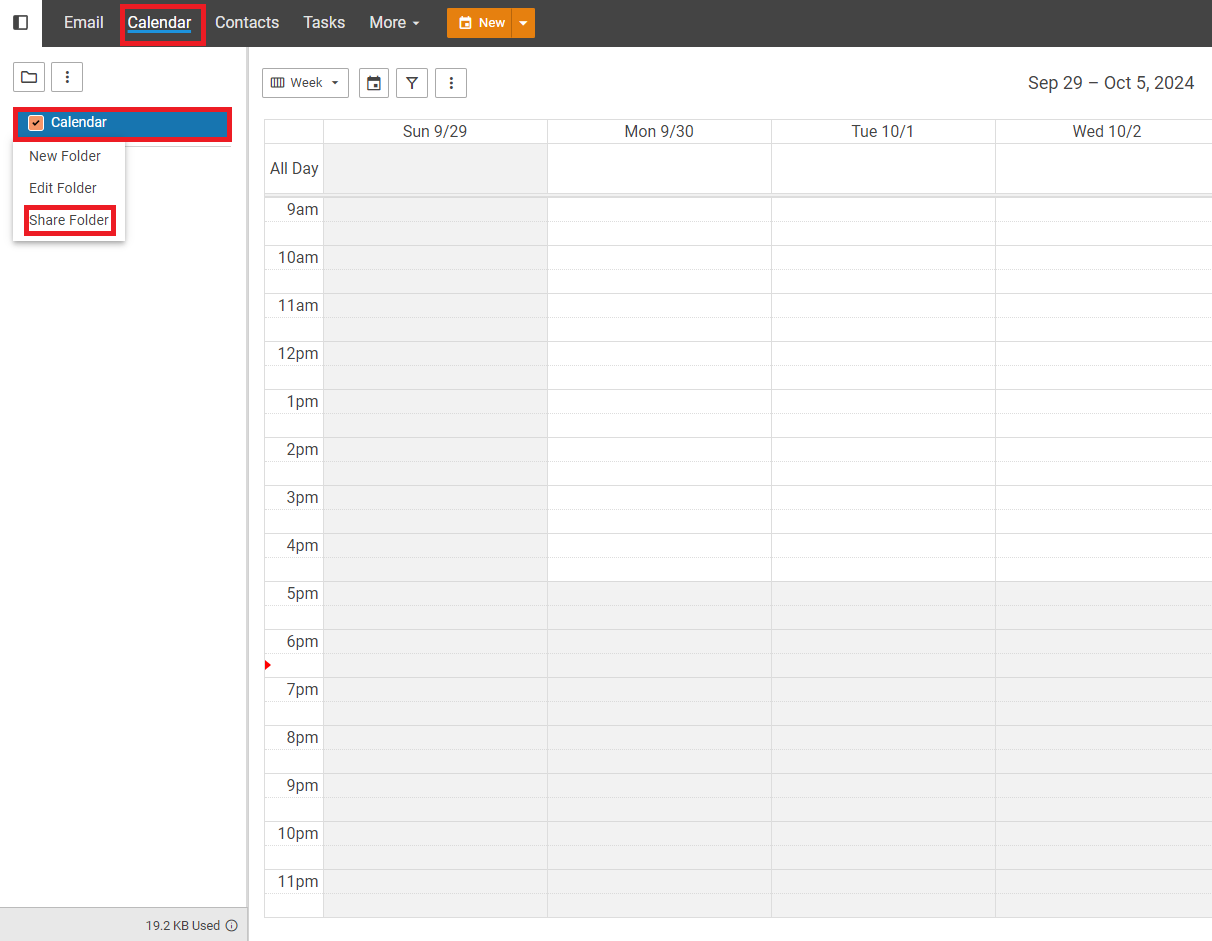
- In the SmarterMail interface, click the Calendar icon located in the navigation pane on the left.
- Find the calendar and right-click on the one you want to share. If it’s not visible, use the folder icon at the bottom of the calendar list to access additional calendars.
Step 3: Share the Calendar
- Right-click the calendar you want to share, or click the Folder icon and select Share Folder from the dropdown menu.
- This will open a sharing window where you can choose the Sharing tab.
Step 4: Add Users or Groups
- In the Sharing tab, enter the names or email addresses of the users you want to share the calendar with. You can also select User Groups for broader access if groups are configured.
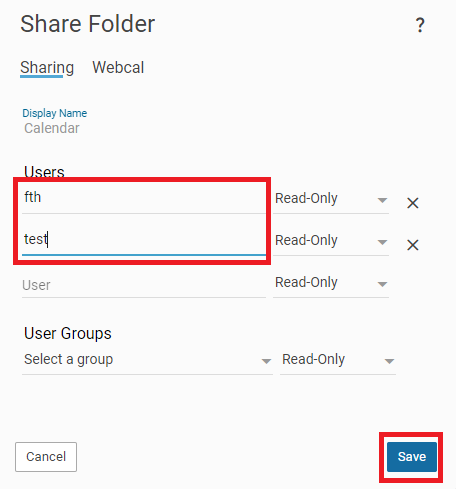
- Set the appropriate access level for each user or group:
- Read-only: Users can view the calendar but cannot modify it.
- Manage: Users can add, edit, and delete items in the calendar.
- Owner: Users have full control, including renaming or deleting the calendar.
Step 5: Save Your Settings
- Once you’ve added users and set the permissions, click Save to apply your changes.
- The selected users will now be able to access the shared calendar with the permissions you’ve set.
