-
Open the Outlook app on your Smartphone.
-
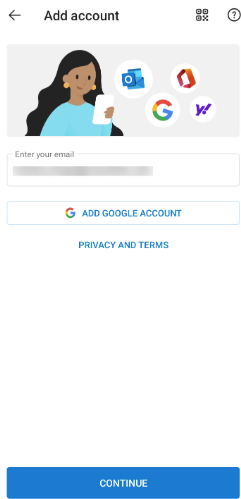
Tap Add Account > Add Email Account.
-
Enter your full email address and tap Continue.
-
You will be presented with a choice. Select either IMAP or POP.
-
You will now see fields for manual configuration. Enter the information.
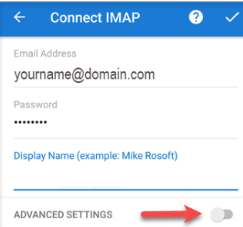
Incoming Server Settings (IMAP or POP):
-
Username
-
Password
-
Server: Your IMAP or POP server address (mail.yourdomain.com).
-
Port: The correct secure port (e.g., 993 for IMAP, 995 for POP).
-
Security type: Select SSL/TLS (recommended).
Outgoing Server Settings (SMTP):
-
Username: Your full email address.
-
Password: Your account password or App Password (must be the same as above).
-
SMTP Server: Your outgoing server address (mail.yourdomain.com).
-
Port: The correct secure port (e.g., 465 for SMTP).
-
Security type: Select SSL/TLS (recommended).
-
-
Tap the checkmark or Sign In/Next in the top-right corner to complete the setup. Outlook will verify the settings and add your account.