
This guide provides step-by-step instructions for configuring an email account (e.g., Gmail, Yahoo, or a custom domain) in Mozilla Thunderbird using IMAP or POP3.
Part 1: Using the Account Setup Wizard
-
Open Thunderbird
-
Launch the Mozilla Thunderbird application on your computer.
-
-
Start Account Setup
-
If this is your first time using Thunderbird, the "Mail Account Setup" wizard will open automatically.
-
If not, click the menu button (☰) in the top-right corner and select "Settings" or "Account Settings".
-
In the left pane of the Account Settings tab, click "Account Actions" > "Add Mail Account...".
-
-
Enter Account Information
-
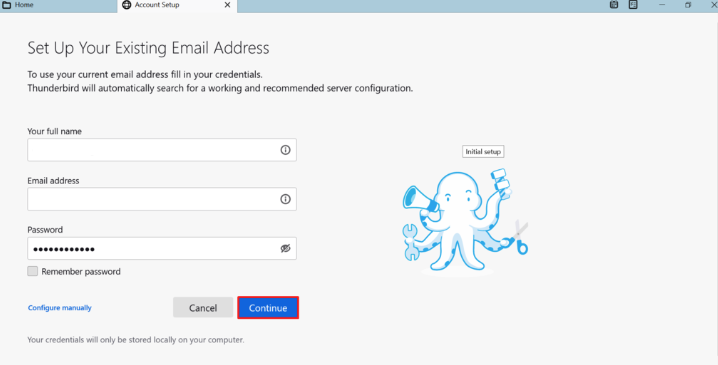
In the new window, enter your:
-
Your Name: The name you want recipients to see.
-
Email Address: Your full email address (e.g.,
[email protected]). -
Password: The password for this email account.
-
-
Click the "Continue" button.
-
-
Automatic Configuration
-
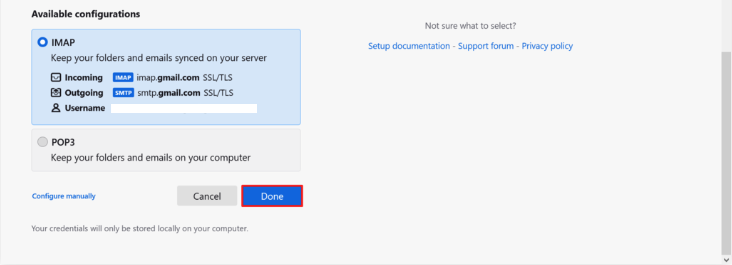
Thunderbird will attempt to automatically detect your mail server settings (for major providers like Gmail or Outlook.com).
-
If successful, it will display the found configuration (usually IMAP). Simply click "Done" to complete the setup.
-
Part 2: Manual Configuration (If Automatic Setup Fails)
If automatic configuration fails, you will need to enter the server details manually. You can obtain this information from your email service provider or IT department.
-
Switch to Manual Setup
-
On the automatic configuration screen, click the "Manual config" button at the bottom.
-
-
Enter Server Settings
-
You will now see fields for manual entry. Fill them out as follows:
-
Incoming (Receiving Mail)
-
Protocol: Select IMAP (recommended) or POP3 from the dropdown.
-
Server Hostname: Enter your incoming mail server (e.g.,
mail.yourdomain.com,imap.gmail.com). -
Port:
-
IMAP:
993 -
POP3:
995
-
-
SSL: Select SSL/TLS from the dropdown.
-
Authentication: Select Normal password.
-
Username: Ensure this is your full email address.
-
-
Outgoing (Sending Mail - SMTP)
-
Server Hostname: Enter your outgoing (SMTP) mail server (e.g.,
mail.yourdomain.com,smtp.gmail.com). -
Port:
-
SMTP:
465(preferred) or587
-
-
SSL: For port
465, select SSL/TLS. For port587, select STARTTLS. -
Authentication: Select Normal password.
-
Username: Ensure this is your full email address.
-
Check the box for "Use the same username and password for incoming and outgoing" if applicable.
-
-
-
Complete Setup
-
Double-check all information for accuracy.
-
Click the "Done" button. Thunderbird will now test the connection and, if successful, download your messages.
-
