
Method 1: Adding Another Email Account to Your New Outlook App (Windows/Mac)
This is the standard method for adding a POP or IMAP account (like Gmail, Yahoo, or an ISP's email) to the Outlook desktop application.
Download New Outlook via Microsoft Store - New outlook Download
Open Outlook: Launch the New Outlook application on your PC. *Enter your email and continue.
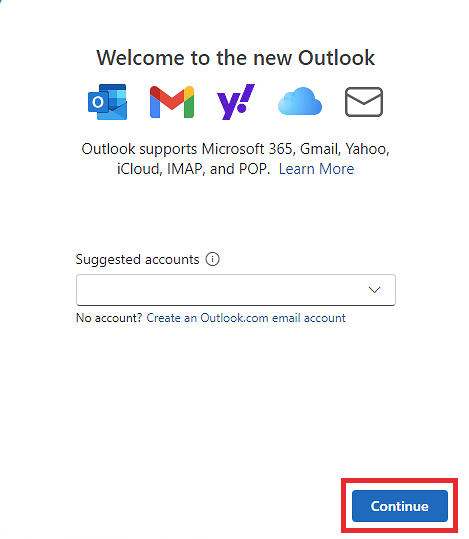
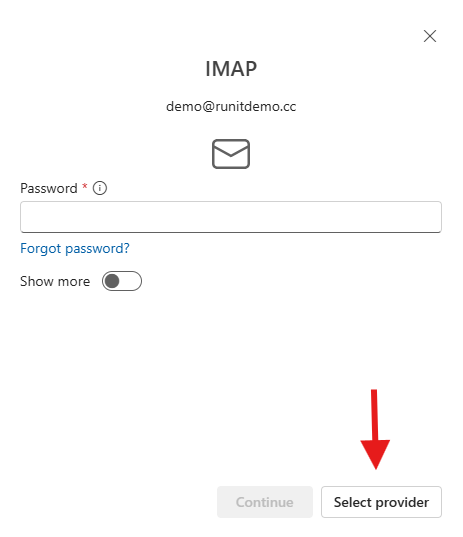
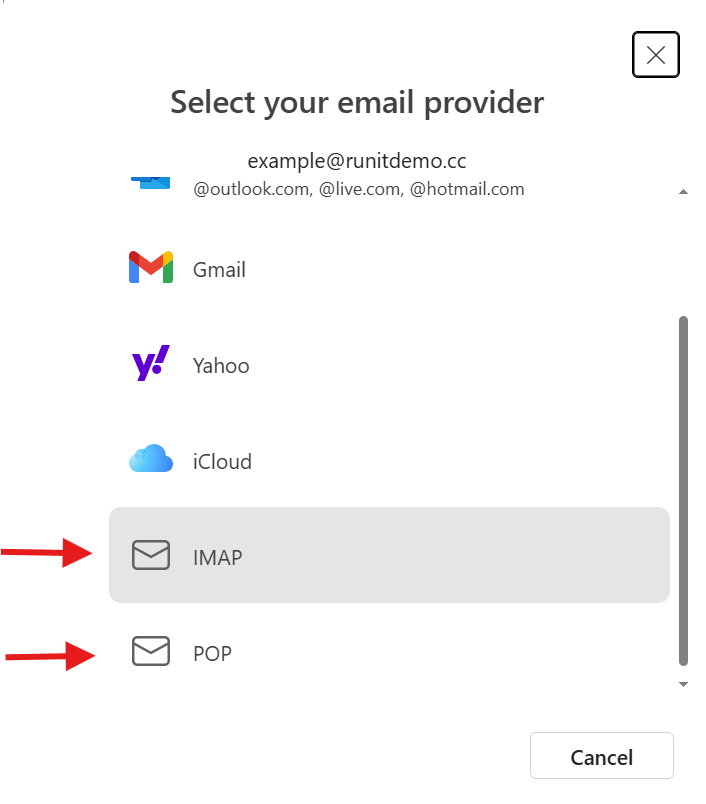
Select provider > IMAP/POP
Enter the password and next.
Choose Setting on the top right
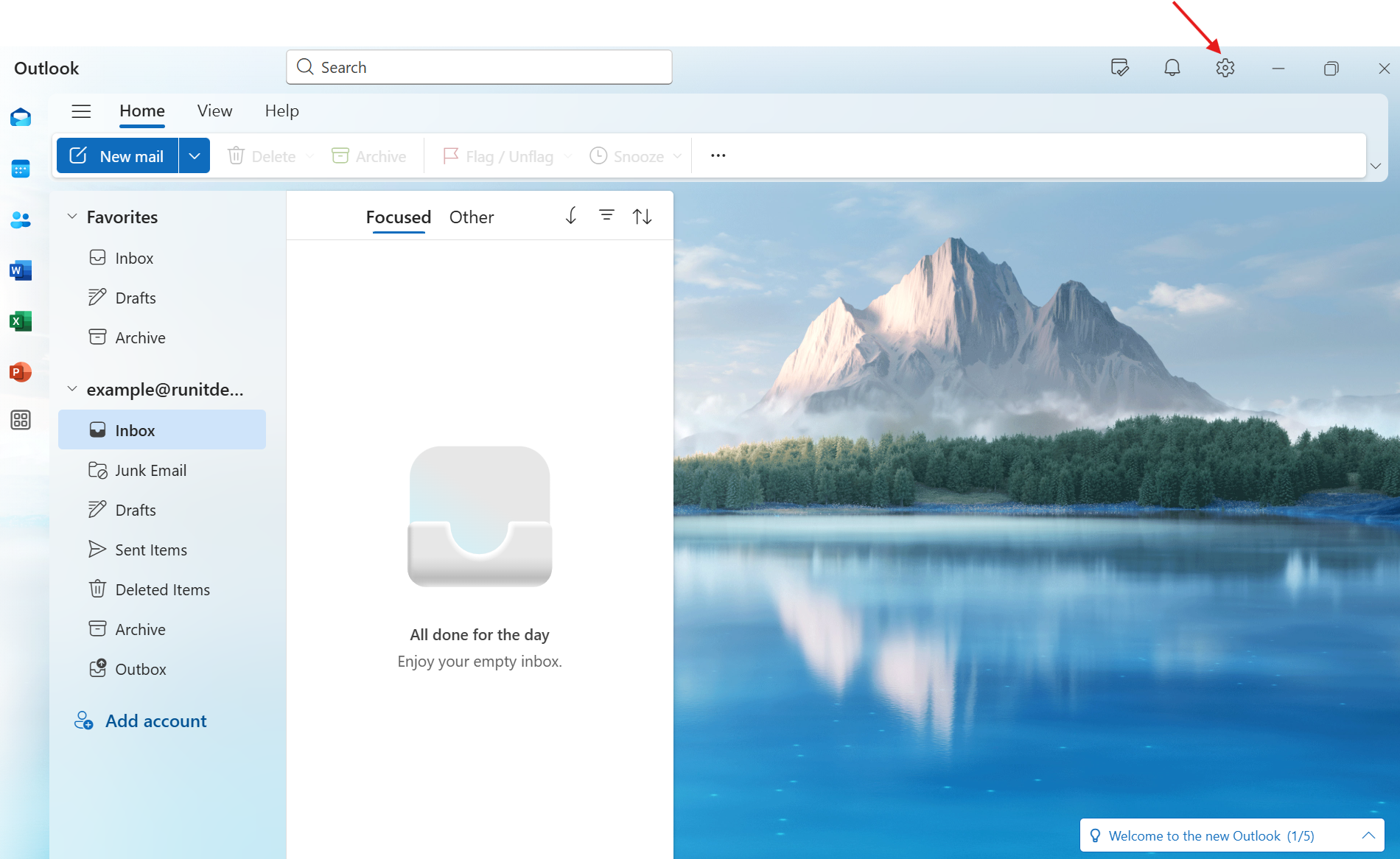
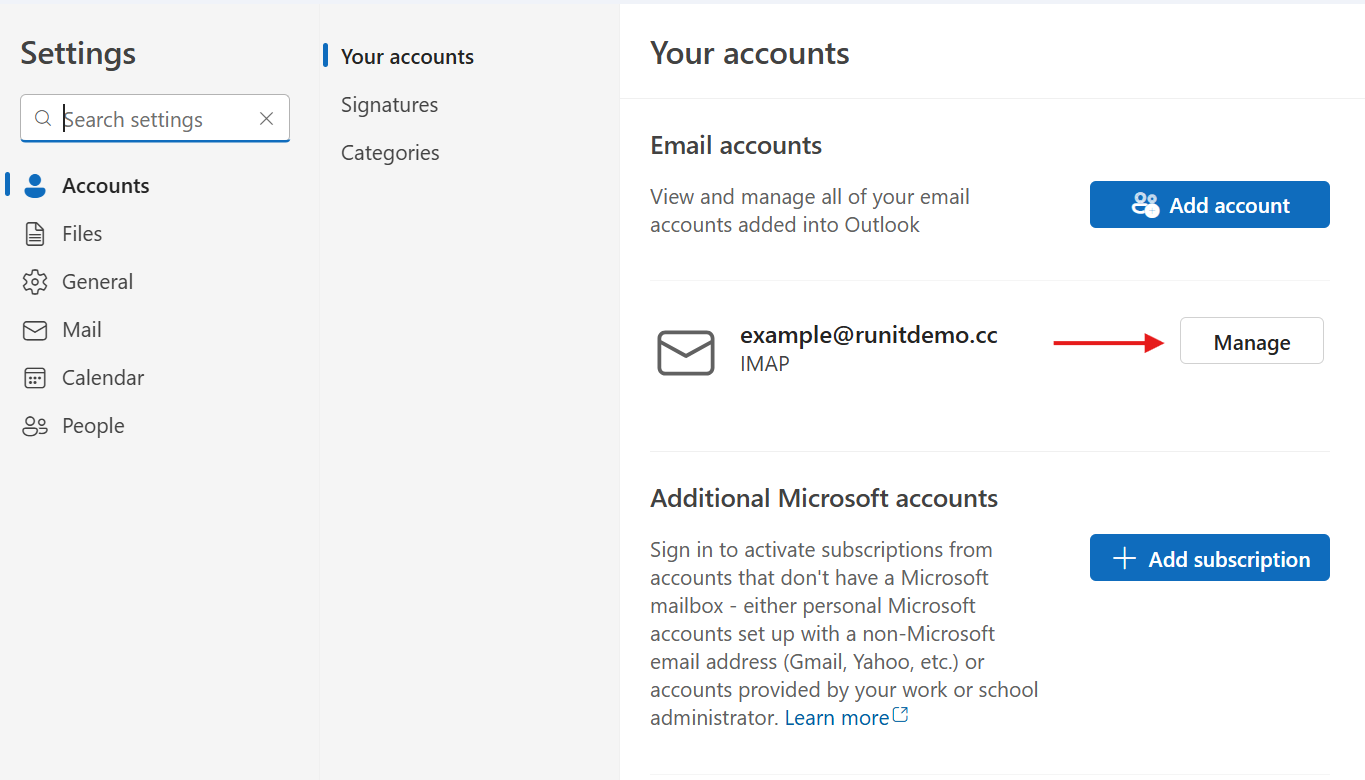
Choose Accounts > Your accounts > Add account/ Manage
If Mail can't find your account settings automatically
If Mail can't find your email settings, then you need to enter them manually. Tap Next, then follow these steps:
-
Choose IMAP or POP for your new account. If you aren’t sure which one to choose, contact your email provider.
-
Enter the information for Incoming Mail Server and Outgoing Mail Server. Then tap Next.
Incoming Server
IMAP
- Host: mail.(your domain)
- Port:
- 143(Non SSL)
- 993(SSL/TLS)
POP
- Host: mail.(your domain)
- Port:
- 110(Non SSL)
- 995(SSL/TLS)
Outgoing Server
SMTP
- Host: mail.(your domain)
- Port:
- 25(Non SSL or STARTTLS)
- 465(SSL/TLS)
- 587(STARTTLS)
